XslLoadException: The type or namespace name ‘SecurityRulesAttribute’ does not exist in the namespace ‘System.Security’ (are you missing an assembly reference?)

While porting a project from .Net 3.5 to .Net 4 we got this weird error. The error occurs when loading an XSLT in memory. Here is the failing piece of code (simplified):

private static XslCompiledTransform ReadXslt(string fname) { XslCompiledTransform xsl = new XslCompiledTransform(); XsltSettings settings = new XsltSettings(false, true); xsl.Load(fname, settings, new XmlUrlResolver());

return xsl; }

The XSLT file being loaded contains C# script:

<msxsl:script language=”C#” implements-prefix=”user” xmlns:user=”urn:my-scripts” xmlns:msxsl=”urn:schemas-microsoft-com:xslt”>
  <![CDATA[
   public string Format(string s, int n)
   {
     if (s.Length < n)
     {
        s = new string(‘0’, n – s.Length) + s;
     }
     return s.Substring(0,n);
   }
  
   // other functions

    ]]>
</msxsl:script>

According to several websites setting the enableScript property in the XsltSettings to true should solve the problem and mostly they are right. But for some weird reason loading the XSLT in this format in a VS Test project keeps failing. I haven’t found the reason, but I did find the working solution!

Checking security on the XSLT files, moving the files directly under the application, … all didn’t work. So moving this application to production would work, only the tests fail Emoticon die tong uitsteekt

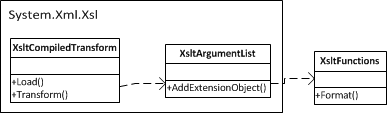
Looking further I fell on this web site: http://msdn.microsoft.com/en-us/library/system.xml.xsl.xsltargumentlist.addextensionobject(v=vs.100).aspx. They suggest to use extension objects containing the C#code instead of writing the code inside the XSLT file. This requires a bit more work on the C#side, but it works everywhere (including in the test project).
image

The (partial) code:

private static readonly XmlUrlResolver _myResolver = new XmlUrlResolver();

private static XslCompiledTransform ReadXslt(string fname)
{
    XslCompiledTransform xsl = new XslCompiledTransform();
    XsltSettings settings = new XsltSettings(false, true);
    xsl.Load(fname, settings, _myResolver);
   
    return xsl;
}

// Additional work in transforming the file (remove C# code from the XSLT file)

private class XsltFunctions
{
    public string Format(string s, int n)
    {
        if (s.Length < n)
        {
            s = new string(‘0’, n – s.Length) + s;
        }
        return s.Substring(0, n);
    }
    // Other functions
}

private static XmlDocument TransformOrganisation(string fname, XmlDocument xml)
{
    // Create an XsltArgumentList, to be passed into the Transform() function
    xsltArgs = new XsltArgumentList();
    XsltFunctions ext = new XsltFunctions();
    xsltArgs.AddExtensionObject(“urn:my-scripts”, ext);

    // Transform in memory
    XslCompiledTransform xct = ReadXslt(fname);
    XmlDocument xformed;
    using (MemoryStream ms = new MemoryStream())
    {
        XmlWriter wtr = XmlWriter.Create(ms);
        xml.WriteContentTo(wtr);
        wtr.Close();

        ms.Seek(0, SeekOrigin.Begin);            // reset stream
        XmlReader rdr = XmlReader.Create(ms);
        using (MemoryStream ms2 = new MemoryStream())
        {
            XmlWriter wtr2 = XmlWriter.Create(ms2);

            xct.Transform(rdr, xsltArgs, wtr2);
            xformed = new XmlDocument();
            ms2.Seek(0, SeekOrigin.Begin);        // reset stream
            xformed.Load(ms2);
        }
    }
    return xformed;
}

Using C# script (or any other not-XSLT extensions) inside XSLT files is now being deprecated, so this is the way to add additional functions to your XSLT files. It is safer because it won’t allow somebody to change your XSLT file and run arbitrary code.

Posted in .Net, Development | Tagged , , | 1 Comment

Advanced logging in IIS 7.5

In the standard installation of IIS 7.5 it is not possible to log the incoming requests, not the outgoing responses. The reason for this is probably that Microsoft wants to keep the attack surface as small as possible. But I needed logging so I asked the web master at TMME (thanks Kim) how to do this.

MS’s iis.net offers free extensions: http://www.iis.net/download/AdvancedLogging
http://learn.iis.net/page.aspx/579/advanced-logging-for-iis—custom-logging/

Using the first link to install the Advanced Logging I got an additional icon in the web app properties page:

image

Possible error:

When opening the “Advanced logging” you’ll see that 1 item is present already. This is defined at site level and inherited to the app level. When you try to modify this item you’ll get:

80070032

This is not the most “speaking” error, but it indicates that you’re not supposed to modify at this level. You can either modify the logging at the site level, or create an additional entry for the purposes of your web app.

BTW, the second link explains how to set up the logging, in case you wondered.

Posted in Computers and Internet, Development, IIS, Logging | Tagged , , | 2 Comments

Using a TreeView in WPF

Using a tree view in Windows Forms is straightforward, but in WPF the control has undergone a lot of modifications. In this blog I’ll describe how to do some tasks that seem to be easy enough, and describe some caveats.

Scrollbar problem

This is the sample window (Don’t mind the colors, they’re just to show the point):

<Window x:Class=”FindInSvclog.MainWindow”
        xmlns=”http://schemas.microsoft.com/winfx/2006/xaml/presentation”
        xmlns:x=”http://schemas.microsoft.com/winfx/2006/xaml”
        Title=”MainWindow” Height=”350″ Width=”568″>
    <StackPanel>
        <Canvas Width=”500″ Height=”228″ Name=”searchCanvas”>
        </Canvas>
        <Grid Grid.Row=”1″>
            <Grid.RowDefinitions>
                <RowDefinition></RowDefinition>
            </Grid.RowDefinitions>
            <Grid.ColumnDefinitions>
                <ColumnDefinition Width=”1*”></ColumnDefinition>
                <ColumnDefinition Width=”1*”></ColumnDefinition>
            </Grid.ColumnDefinitions>
            <TreeView Background=”#FF00FF00″ Name=”FileTree” AlternationCount=”1″ />
            <GridSplitter Width=”5px” ResizeDirection=”Columns” Background=”DarkSlateGray”/>
            <TextBlock Grid.Column=”1″ Background=”#FF0000FF” />
        </Grid>
    </StackPanel>
</Window>

The highlighted TreeView doesn’t have a vertical scrollbar, even though it should.

The problem isn’t related to the TreeView, but to the StackPanel: In a StackPanel every item gets all the space it needs. So the StackPanel doesn’t report its current size back (this is the correct behavior!). Changing the StackPanel into a Grid solved the problem completely.

Posted in .Net, Development | Tagged , , | Leave a comment

Rediscovered the Debug attributes

There are 2 attributes that can easily be applied to your classes / methods to modify the behavior at debugging time. The attributes don’t change the runtime behavior of your code.

[DebuggerDisplay]

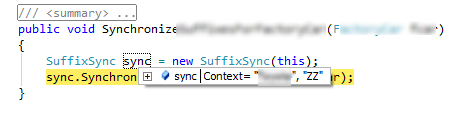
This attribute defines how you’ll see a type or member in the debugger window (like the quick preview, Shift-F9).

There are 3 possibilities:

  1. This attribute is not applied, and the class doesn’t implement ToString( ). In this case the type of the object is shown (which is the default behavior of Object.ToString( ) ).
  2. This attribute is not applied, but the class implements ToString( ). The return value of ToString( ) is shown. Make sure that ToString( ) doesn’t change your object data, or that it doesn’t take ages to execute.
  3. The attribute is applied. Even when ToString( ) is implemented the DebuggerDisplay attribute will be applied.

Example:

[DebuggerDisplay(“Context= {_ctx.Brand}, {_ctx.CountryCode}”]
class SuffixSync
{
    private readonly MyContext _ctx = MyContext.GetContext();

    [ … ]

}

image

[DebuggerBrowsable]

This attribute determines if and how a field or property is displayed in the debugger variable windows.

This example will prevent the debugger to show the e_gateway field:

class SuffixSync
{
    private readonly MyContext _ctx = MyContext.GetContext();
    private readonly IMediator _mediator;
  
[DebuggerBrowsable(DebuggerBrowsableState.Never)]
    private readonly Gateway _gateway = new Gateway();

image

Other values for the enumeration are

  • DebuggerBrowsableState.Collapsed: shows the element as collapsed.
  • DebuggerBrowsableState.RootHidden: indicates that the member itself is not shown, but its constituent objects are displayed if it is an array or collection.

Reference:

http://msdn.microsoft.com/en-us/library/ms228992(VS.90).aspx

Posted in .Net, Debugging, Development | Tagged , | Leave a comment

Could not load file or assembly ‘System.EnterpriseServices.Wrapper.dll’

I had this error when running a .Net 3.5 app that is using a DB2 connector on a Win XP SP3 machine. The application has always worked until today and is in no way using the referenced assembly (just executing some select statements).

The full error reads:

System.IO.FileNotFoundException: Could not load file or assembly ‘System.EnterpriseServices.Wrapper.dll’ or one of its dependencies. The system cannot find the path specified.
File name: ‘System.EnterpriseServices.Wrapper.dll’ —> System.IO.FileNotFoundException: Could not load file or assembly ‘System.EnterpriseServices.Wrapper.dll’ or one of its dependencies. The system cannot find the path specified.
File name: ‘System.EnterpriseServices.Wrapper.dll’ —> System.IO.DirectoryNotFoundException: The system cannot find the path specified. (Exception from HRESULT: 0x80070003)

at System.EnterpriseServices.ContextUtil.get_IsInTransaction()
at System.Data.Common.ADP.IsSysTxEqualSysEsTransaction()
at System.Data.Common.ADP.NeedManualEnlistment()
at System.Data.Odbc.OdbcConnection.Open()
at MyFantasticApp.Program.Main(String[] args)

Googling for it recommended to repair the .Net 3.5 SP1 installation.

Result: It is working again!

Posted in .Net, Assembly | Tagged , , , | 2 Comments

FuslogVw–debugging assembly loading

We’ve all had it before: referencing some libraries, recompiling the project and then the variation on the DLL hell: the assembly hell.

Suddenly one of your assemblies (or on of its dependent assemblies) doesn’t load anymore.

Debugging this can be done by using FusLogVw: Start the VS command prompt as an administrator, type : FusLogVw and the “Assembly Binding Log Viewer” is shown. Click on the “Settings…” button to enable logging of assembly loading and test your program. If you don’t start the tool as an administrator you won’t be able to change the loggings settings, as some HKLM registry keys are updated for this.

The logging in the FusLogVw window isn’t live: you need to refresh from time to time to see some results. Now find the assembly that is causing troubles and double click on the line. This will explain how FusLogVw tried to resolve the path to your assembly. No indication is given on the line that it failed, you only find that information when you double click the line. On the other hand you probably have the name and version of the assembly that fails to load anyway, so this isn’t a real problem.

Maybe you need to adjust some bindingRedirects in your app.config file, or if it is for the whole system in the C:\Windows\Microsoft.NET\Framework\v2.0.50727\CONFIG\machine.config file.

<runtime>
    <assemblyBinding xmlns=”urn:schemas-microsoft-com:asm.v1″>
        <dependentAssembly>
            <assemblyIdentity name=”Microsoft.Practices.RecipeFramework” publicKeyToken=”b03f5f7f11d50a3a” culture=”neutral”/>
            <bindingRedirect oldVersion=”1.0.51206.0-1.3.0.0″ newVersion=”1.4.0.0″/>
        </dependentAssembly>

[ … ]

Posted in .Net, Assembly, Development | Tagged | Leave a comment

WCF – use a file in the App_Data folder

If your web service needs information from some external files, a logical place for these files is the App_Data folder.

To get the fysical path of the file in a WCF service you can use this code:

RolemappingPath = HostingEnvironment.MapPath(@”/App_Data/RoleMapping.xml”);

The class HostingEnvironment is in the namespace System.Web.Hosting, and you will also need to add a reference to System.Web.dll.

Reference: http://msdn.microsoft.com/en-us/library/system.web.hosting.hostingenvironment.mappath.aspx

Posted in Development | Leave a comment

WCF – Issue a request over https with custom header

In my current project I need to call a web service over https. Security is implemented by using a custom header (old school). To support this in WCF follow the following simple steps:

In the configuration file (app.config) make the following changes:

<client>
    <endpoint address=”https://…”
        binding="basicHttpBinding" bindingConfiguration="MyHttpsBinding"
        contract="…" name="ACC">
        <headers>     <!—your custom header here  –>
            <credentials >
                <username>…</username>
                <password>…</password>
            </credentials>
        </headers>
    </endpoint>
</client>

Add a new binding:

<binding name="MyHttpsBinding">
    <security mode="Transport">
        <transport>
            <extendedProtectionPolicy policyEnforcement="Never" />
        </transport>
    </security>
</binding>

Posted in Development | Leave a comment

LINQPad tool

Perfect tool to try out all your LINQ queries! Needn’t say more!

http://www.linqpad.net/

Technorati Tags: ,,

Posted in Geen categorie | Leave a comment

CalendarExtender and Globalisation

By default the CalendarExtender isn’t aware of the Globalisation settings. Example:

<asp:TextBox ID="txtFrom" runat="server" Width="80px"></asp:TextBox>
<cc1:CalendarExtender ID="txtFrom_CalendarExtender" runat="server" TargetControlID="txtFrom" ClearTime="True">
</cc1:CalendarExtender>

Web.config:

<system.web>

[ … ]

<globalization uiCulture="nl-BE" culture="nl-BE" />

</system.web>

This will still not use the nl-BE culture. To get it working you must add the EnableScriptGlobalization="True" to the ScriptManager that you’re using.

<asp:ScriptManager ID="ScriptManager1" runat="server" EnableScriptGlobalization="True">
</asp:ScriptManager>

Source: http://forums.asp.net/p/1068187/1589941.aspx


Posted in Geen categorie | Leave a comment