
CLR trigger – External access

By default when you create a CLR trigger, VS 2008 will deploy it as a SAFE trigger:

CREATE ASSEMBLY HelloWorld

FROM @SamplesPath + ‘HelloWorld\CS\HelloWorld\bin\debug\HelloWorld.dll’

WITH PERMISSION_SET = SAFE;


This is good, you always want to start with the minimal permissions but as in my previous example, when you want to work with the file system you’ll need the “external access” permission for your assembly.

The good news is that in the project properties you can set this very easy:
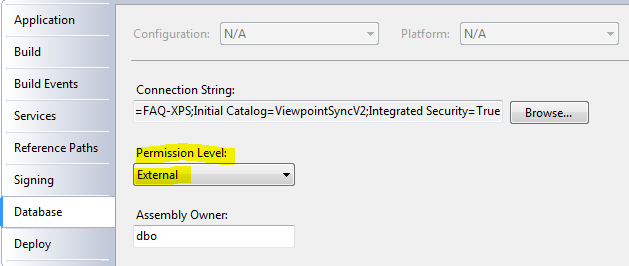
image


But the database server won’t accept this so easily. You’ll need to set the database in the Thrustworthy state.

It cost me a bit of searching but the way to do this is:

Use Master

alter database XYZ set trustworthy on


And now you can play.

Security warning: This setting is good for development, but in production circumstances you’ll need some other tricks. Next post when I have solved this problem!
Posted in Development | Leave a comment

CLR Trigger

Creating a CLR trigger couldn’t be easier:

image

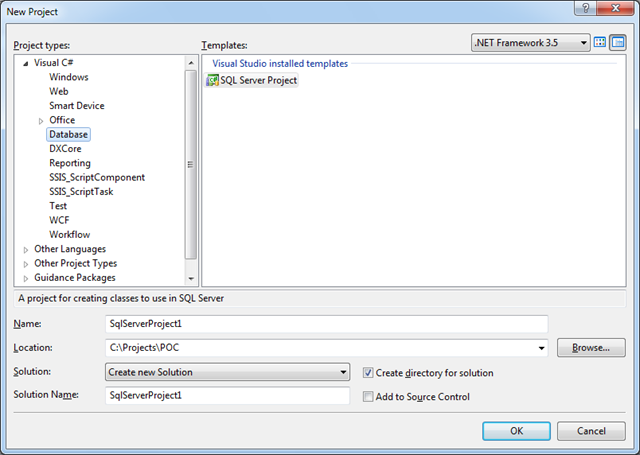
In VS 2008 Create a new SQL Server Project, then create a new trigger (right click project name, add, trigger.

Fill in the attribute’s properties:

[Microsoft.SqlServer.Server.SqlTrigger(Name = "PackageDeleteTrigger", Target = "Packages", Event = "FOR DELETE")]
public static void PackageDeleteTrigger()

and write your code, for example:

[Microsoft.SqlServer.Server.SqlTrigger(Name = "PackageDeleteTrigger", Target = "Packages", Event = "FOR DELETE")]
public static void PackageDeleteTrigger()
{
    // Replace with your own code
    SqlContext.Pipe.Send("Trigger FIRED");

    using (SqlConnection conn = new SqlConnection("context connection=true"))
    {
        conn.Open();
        using (SqlCommand cmd = conn.CreateCommand())
        {
            cmd.CommandType = CommandType.Text;
            cmd.CommandText = "select * from deleted";
            using (SqlDataReader rdr = cmd.ExecuteReader())
            {
                while (rdr.Read())
                {
                    string path = rdr.GetString(2);
                    string fullpath = Path.Combine(@"c:\temp", path);
                    File.Delete(fullpath);

                    SqlContext.Pipe.Send("Deleted file " + fullpath);
                }
            }
        }
    }
}

Running the project (F5) will compile it, and deploy the assembly to your SQL server. The test.sql script will be automatically executed. Of course you should make your code a bit more robust, checking for possible exceptions. Otherwise the CLR exception will pass to SQL server, and your record won’t be deleted. It will all depend on your situation whether this is good or bad.

I’ll discuss the security problems in the next post.

Posted in Geen categorie | Leave a comment

Windows 7 SendTo

When you rightclick on the start button and then choose “Explorer”, in previous versions of Windows this would take you to your own user profile folder. This contains a folder called “SendTo”, where you can (for example) add a shortcut to notepad.

I was looking for this folder in Windows 7, but it wasn’t visible in the explorer. When I tried to type it in the address bar of the explorer I got an “access denied” message.

The trick is now to type “shell:sendto” as a location. This will take you in the familiar folder to add your shortcuts.

I found this tip at http://www.pc-active.nl/special-windows-7/206943-windows-7-supertip-bestanden-snel-kopieren.html (in Dutch).

Posted in Geen categorie | 1 Comment

Create a new WCF log file after a certain size is reached

By default when you create a log file for your WCF service, this will be one file that will always grow. This makes it hard in the end to load the file in memory to check it out.

I found a nice implementation of a TraceListener that will create a new log file once a certain size is reached at http://www.codeproject.com/KB/WCF/RollingXmlWriterTraceList.aspx.

I’m using this unmodified in my current project now. Even better would be to create a new log file every day. I’ll implement this later, when I have time and I’ll adjust this post then.

Technorati Tags: ,

Posted in Geen categorie | Leave a comment

Fresh installation of IIS doesn’t recognize .svc requests

This problem can be solved easily by running the ServiceModelReg tool. This can be found in %SystemRoot%\Microsoft.Net\Framework\v3.0\Windows Communication Foundation.

ServiceModelReg –i will do the trick.

More information at http://msdn.microsoft.com/en-us/library/ms732012.aspx

Technorati Tags: ,,,

Posted in Geen categorie | Leave a comment

MS Access has a problem with date/time fields when the Milliseconds aren’t 0.

I was trying to add a record with a date/time field in an MS Access database like this:

const string UpdateContactPersonSQL =
    "UPDATE ContactPerson set Firstname = ?" +

   […]

        ", ModificationDate = ? " +
    "WHERE ContactpersonID = ?;";

int affected = 0;
Database db = DatabaseFactory.CreateDatabase();

using (DbCommand cmd = db.GetSqlStringCommand(UpdateContactPersonSQL))
{
    Contact.ModifiedBy = UserID;
    db.AddInParameter(cmd, "Firstname", DbType.String, nz(Contact.Firstname));

[…]

     db.AddInParameter(cmd, "ModificationDate", DbType.DateTime, DateTime.Now);
    db.AddInParameter(cmd, "ContactpersonID", DbType.Int32, Contact.ContactpersonID);

    affected = db.ExecuteNonQuery(cmd);

}

Access doesn’t like the use of DateTime.Now, because it can’t handle the Milliseconds field when it’s not 0. So I wrote (copied) a little helper function to return Now with the Milliseconds set to 0:

protected DateTime Now()
{
    DateTime dtmDate = DateTime.Now;
    return new DateTime(dtmDate.Year,
                        dtmDate.Month,
                        dtmDate.Day,
                        dtmDate.Hour,
                        dtmDate.Minute,
                        dtmDate.Second);
}

and of course I pass Now( ) instead of DateTime.Now. It’s working 🙂

Ref: http://forums.asp.net/t/1079456.aspx

Tags van Technorati: ,,,

Posted in Development | Leave a comment

MIME Type Detection in Internet Explorer

Just a quick one: here you can find the possible values for Response.ContentType, like:

Response.ContentType = "application/x-zip-compressed";

http://msdn.microsoft.com/en-us/library/ms775147(VS.85).aspx


Tags van Technorati: ,,

Posted in Development | Leave a comment

Securing a WCF service with a username / password

When you read the MS documentation, this looks like a trivial thing to do, but of course there are always some things that just don’t work as you’d like them to work. I got it working thanks to some excellent articles:

http://msdn.microsoft.com/en-us/library/aa354513.aspx describes the major steps to create a user/password validation function, and to inform your web service of the existence of this function (web.config settings of course). Don’t forget to create the certificate that’s mentioned in the setup instructions.

Then I installed the service on a web server, and tried to start it. Even after installing the certificate I got this error: CryptographicException: Keyset does not exist Searching a bit further led to this article:

http://social.msdn.microsoft.com/Forums/en-US/Geneva/thread/24e3d00d-02b8-4541-8e5d-eb28b7e817a9 in which they say that you have to grant private key permissions to your network service account. Unfortunately they don’t describe how to do that. This article however describes it pretty well and accurate:

http://stackoverflow.com/questions/425688/how-to-set-read-permission-on-the-private-key-file-of-x-509-certificate-from-ne , using this line:

winhttpcertcfg -g -c LOCAL_MACHINE\My -s test -a NetworkService

Now only I had to find the winhttpcertcfg tool to finish my quest. It is here:

http://www.microsoft.com/downloads/details.aspx?familyid=c42e27ac-3409-40e9-8667-c748e422833f&displaylang=en 

The full script to install the certificate on the server, and grant the necessary access to it:

set SERVER_NAME=localhost

echo %SERVER_NAME%

echo ******************

echo making server cert

echo ******************

makecert.exe -sr LocalMachine -ss MY -a sha1 -n CN=%SERVER_NAME% -sky exchange –pe

certmgr.exe -add -r LocalMachine -s My -c -n %SERVER_NAME% -r CurrentUser -s TrustedPeople

winhttpcertcfg -g -c LOCAL_MACHINE\My -s %SERVER_NAME% -a NetworkService


Posted in Geen categorie | Leave a comment

Starting a scheduled task in C#

I had to start a scheduled task. Most of the examples on MSDN use C++ for this, because there are no managed APIs to work with the task scheduler. Lucky for me the COM components for the Task Scheduler are pretty easy to use.

The steps:

  1. Add a COM reference for the TaskScheduler component.
  2. Add   using TaskScheduler;   to your source.
  3. Use the following code as an example:

TaskScheduler.TaskScheduler ts = new TaskScheduler.TaskSchedulerClass();
ts.Connect("faq-xps", "username", "domain", "password");
ITaskFolder tf = ts.GetFolder(@"\");
IRegisteredTask task = tf.GetTask("Test");   // “Test” is the name of the task in the Scheduler
task.Run(null);              // If your task requires parameters, then pass them instead of null

BTW, if you want to do this using a command line utility, you may want to try “schtasks” in a command prompt.

Posted in Development | Leave a comment

VS 2008 – View white space

I gladly use a lot of VS’s shortcuts, and one of my favorites is Ctrl+E, Ctrl+D which will format your document.

Today I missed and typed something else than Ctrl+E, Ctrl+D, causing my editor to show all the tabs as arrows (like in Word). So I had to find how to reset this. In the Edit > Advanced menu I found the correct command (View white space), and if you’re interested in the shortcut: Ctrl+E, Ctrl+S.

Posted in Geen categorie | Leave a comment