State Chart Diagram Part II

In part I we covered state chart diagrams in a basic way. Usually this is good enough to describe your states. You also want to keep thing simple (KISS). On the other hand it can be convenient to be able to express some more situations, which is what we’re going to do in this post. We will see how we can specify actions when a certain event occurs, we’ll see how we can describe conditions and then we’ll see how to describe concurrent states in a State Chart Diagram.

Actions on Transitions

We already talked about actions in the previous post. We put actions in the states themselves as entry actions, exit actions or do actions. This is usually the right place to put them!
image

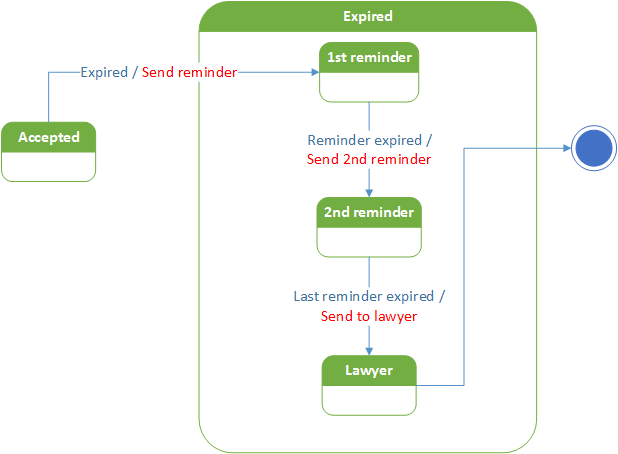
The syntax for a transition is : eventTrigger [guard condition] / action

The action is what will be executed when the transition occurs.

All three parts (eventTrigger, guard condition, action) are optional. In the diagram above we omitted the guard condition, only putting the actions.

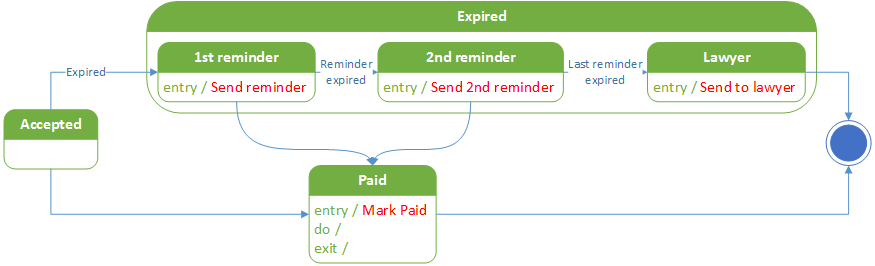
I’d like to put a remark here: let’s take the first expired action. When the state changes from “Accepted” to “1st reminder” the first reminder will be sent. There is only 1 arrow arriving in the “1st reminder” state, so no problem.

But it is clear that often this action will always need to be performed when we get into the “1st reminder” state. So it would be a better idea to put “Send Reminder” as an entry action for this state. That way, when in the future we find more transitions to “1st Reminder” we’re always certain that a reminder will be sent in any case!

Of course the same goes for the “2nd reminder”.

And in that way we can remove some clutter from the diagram as well. Let’s keep things as simple as possible!
image

Guard Conditions

The syntax for a transition is : eventTrigger [guard condition] / action

This event will be executed when the guard condition is true.

image

When we look at the “Paid” state we see that it can be left in 2 ways:

Either the invoice is completely paid ( [total amount paid] ) and we’re happy, or the invoice was only partially paid ( [invoice not completely paid] ) and we go back to the “Accepted” state.

The conditions can be expressed in whichever way you like. We could have put something like [amount paid = invoice total] instead of [total amount paid]. This may depend on your audience (who is reading this diagram?). If it is a final diagram for your developers, then the more explicit way of putting the guard condition may be better. If you’re still discussing with your end-users then the first (more abstract) form may be better.

Concurrent States

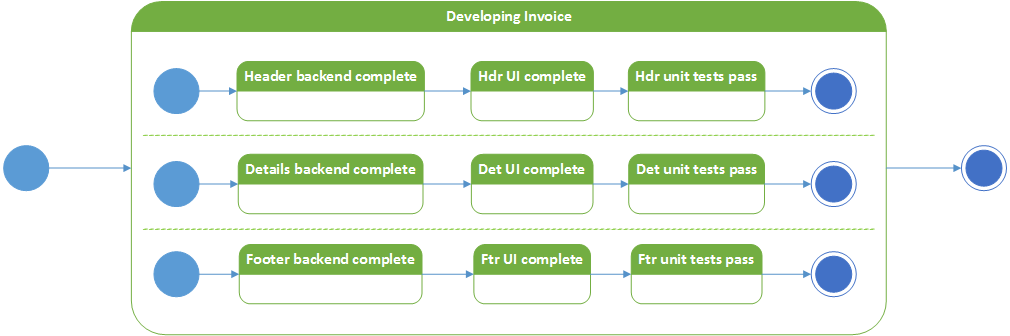
When there are concurrent actions to be executed, each action can have its own state.
image

Let’s say that we’re going to start developing our invoice. We’ll need to develop a header for the invoice, where we’ll enter the client details and some invoice details (invoice number, date, expiration date, …). As you see the expiration date follows from our previous analysis.

Then we need a part where we will enter the invoice details. We need to be able to create the invoice lines, modify them, etc.

And finally we need to create the invoice footer, where we calculate totals, taxes, …

But we don’t necessarily need to do all these 3 tasks one after the other. Maybe we have 3 developers, who can work simultaneously on the software. In that case each developer can run through his states (backend – UI – unit tests), and the invoice software will be complete when all the 3 trajectories are ended.

Of course this is a very naïve example of software development. The 3 lanes are never so straightforward, but for the sake of simplicity we keep it this way in this example. I put a more realistic diagram of TDD at the end of this post.

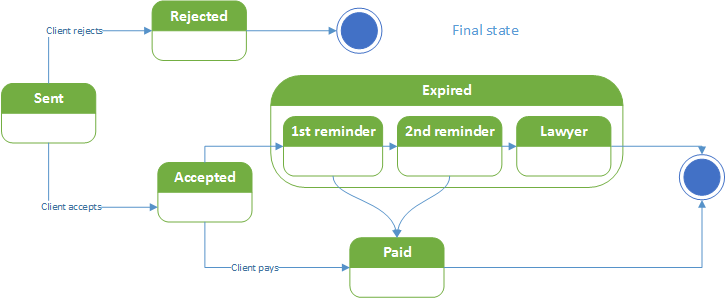
The complete diagram

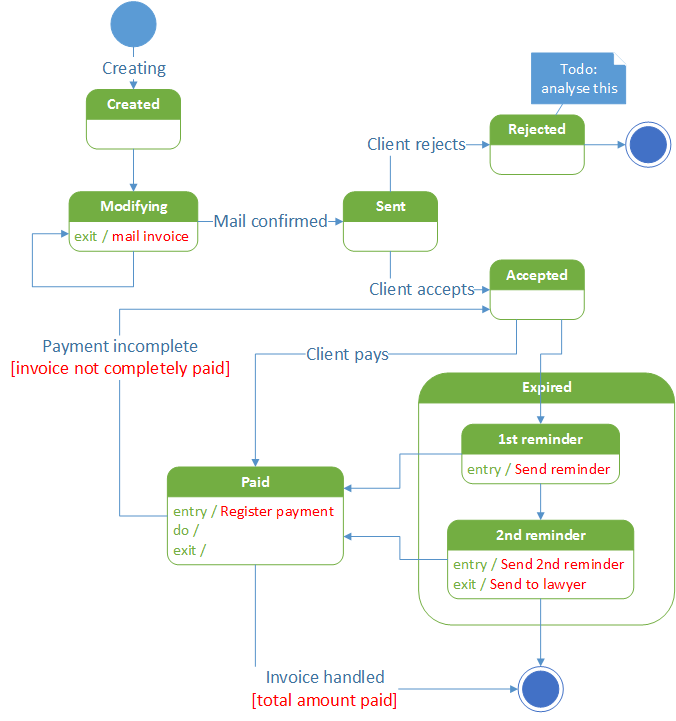
I have put most of the principles that we have discussed in one fine diagram. While discussing this with an end-user, she immediately noticed that we have some work to do for the “Rejected” state, hence the comment on that state.

I used colors in this diagram to make things clearer. You don’t have to do that in your diagrams, unless you think that it adds clarity.

I also had to rearrange the diagram so that it would fit on the page. In our paperless times, with large screens that should not be a concern in most of the cases. But sometimes these diagrams can become quite big, so it may be a good idea to model composed states on a separate diagram.

In this diagram we see that everything flows towards the end states. Because I had to rearrange the diagram, there are 2 directions: one horizontal direction for the “Rejected” flow, and one vertical direction for the “Accepted” flow. I normally create diagrams in such a way that everything either flows horizontally (and from left to right) or vertically (top down). That makes the diagrams more clear.
image

A Word of Caution

We have seen many ways to express things in a state chart diagram. But it is not because we have all these possibilities that we need to use them. Try to keep things simple!

One More Example

Development of a web page

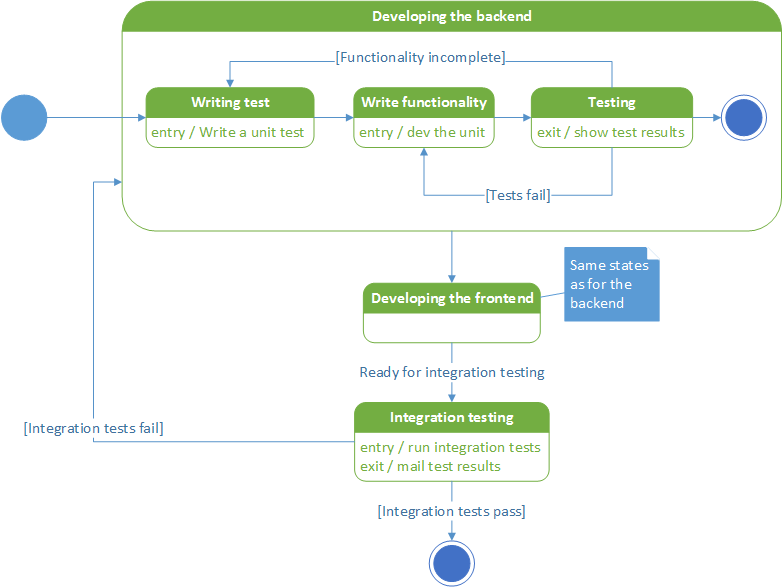
In this example I want to work out the “Invoice development” a bit better. I’m concentrating on only the development of one unit, such as the invoice header.
image

We start by writing the backend, after which we write the front end. We then perform the necessary integration tests and if all goes well the unit is finished. So that is the (sequential) happy path.

For the development we practice TDD (Test-driven development). So we start by writing a test, for which we implement the functionality. We then test what we have written and hope that the test passes. If it doesn’t we continue the development until the test is OK. We then verify if all the cases are covered. If not we add a new unit test (or more than 1) and we repeat the whole cycle until we’re complete with the backend.

For the front end we run through the same process, as indicated by the comment. When we’re happy with the front end we can test the whole. If the integration tests don’t pass we enter the backend development again, starting by writing some more unit tests. We repeat the cycle until all the integration tests pass.

Conclusion

This concludes my explanations about state analysis. I hope that in these 2 articles you have seen that by defining state correctly already during the analysis phase, you’re creating a lot of advantages:

  • It gives you another angle on your models, which is a good way to verify if nothing was missed in the analysis.
  • It’s a good way to discuss with your clients / users
  • Developers and testers usually understand it really well so development will be faster, and more accurate

Do you use state chart diagrams? Let me know in the comments!
Posted in Analysis, Codeproject, Development, OOAD, UML | Tagged | Leave a comment

How to describe object state

Let’s say that we’re developing an application to manage invoices. Invoices will be created, modified, sent, (hopefully) paid or rejected, …

Depending on the stage that an invoice is in, we can perform different actions on it. For example: it will be very rare that an invoice that was rejected will be paid. Or it shouldn’t be allowed to modify an invoice once it has been sent. So how can we model this in such a way that it becomes easy to develop it, and – in extension – to test it?

Let’s first define some things:

What is a State

A state is a condition during which

  • an object satisfies some condition
  • an object performs some activity
  • an object waits for some event

Examples of states in the invoicing example can be:

  • Creating – we are creating the invoice
  • Modifying – after the invoice was created we modify it
  • Sent – The invoice has been sent to the customer, in some way (like e-mail, snail mail)
  • Accepted – the customer has accepted the invoice
  • Rejected
  • Expired – the expiration date of the invoice is passed
  • Paid – this should be the end state of an invoice

An event is a significant occurrence

  • Something that happens at a point in time.
  • Has no duration.This is not always true. When we send an invoice to the customer, this will take some time. But we consider this as an immediate action.
  • One-way transmission of information. Typically nothing is returned from an event.

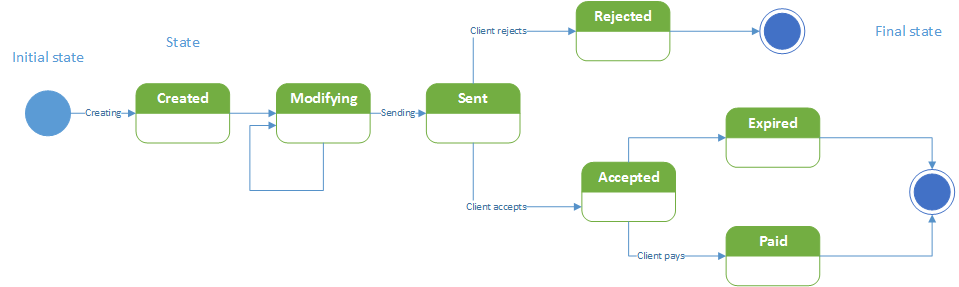
State Machine Diagram

image

This simplest form of this diagram is composed of the following elements:

  • States: initial state, final state, simple state
  • Transitions: are indicated by a labeled arrow.

As you can see, with only these 2 elements we can express a lot already. We see immediately that when an invoice has been sent, it can’t be modified anymore. We also see that there currently are no actions when an invoice is expired or rejected, which may indicate that our analysis is incomplete.

Composite state

image

When an invoice is expired we may want to send a reminder, then maybe a second reminder, and then send the invoice to our lawyer. This can all be part of the expired state. So we can make this a composite state, containing sub states. The diagram shows it all. And of course we can do the same with the rejected state.

Actions

image

When entering or leaving a state you may want to perform some actions. In the diagram above when we enter the “Paid” state we always mark the invoice as paid. We put this on all 3 the arrows, indicating that this must be done in 3 instances in our code. Not so DRY, is it?

image

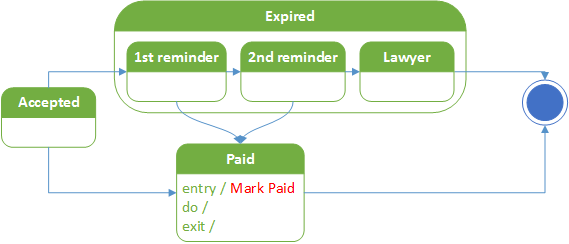
So instead we create an entry action on the “Paid” state, that says: “every time we enter this state we will “Mark Paid” the invoice.” This has several advantages:

  • The diagram becomes simpler (KISS), it contains less overhead.
  • We can’t forget the “Mark Paid” on one of the arrows.
  • For the implementation we now know that entering the “Paid” state also means marking the invoice as paid.
    • The implementation just became easier. This code can easily be derived from the diagram.
    • The tests just became more atomic. We just need to test that the method is called when the state is entered, and we’re good.

This makes most sense when there are multiple paths into the “Paid” state.

We can do the same with the exit action, which will be called when we leave the “Paid” state.

The “do” action will be called (repeatedly) while in the “Paid” state.

Conclusion

There is much more to say about State diagrams, but that will be for another post.

Happy drawing!

References

http://www.uml-diagrams.org/state-machine-diagrams.html

https://en.wikipedia.org/wiki/UML_state_machine

Posted in Analysis, Codeproject, Development, OOAD, UML | Tagged , | 1 Comment

Let’s fix Windows Live Writer on Win10

The problem

I installed Windows 10 on my computer, and then to make blogging easy I wanted to install Windows Live Writer. So I went to https://www.microsoft.com/en-us/download/details.aspx?id=8621 to download it and well enough, I received the setup file wlsetup-web.exe in my download folder.

So things are easy from here: double-click the exe and it will install. Not on Window 10 (which is great, by the way). I received an error message (in Dutch, so I won’t put a screen shot here) telling me that something had gone wrong.

The solution

As always Google is your friend. I found an article explaining what to do, I’ll give you the solution immediately instead of letting you wade through all the answers. It turns out that there is a version that will work, but it is hidden at http://windows.microsoft.com/en-us/windows/essentials.

The download at this location will work for Windows 10.

I hope this short post may help someone. If it helped you then please leave a comment.

Posted in Computers and Internet | Tagged , , | 1 Comment

How to obtain the value of the selected radio button

Here is a simple way to get the value for the selected button in an html form, using jquery:

<form>
<input type=”radio” name=”status” value=”1″ /> Free <br />
<input type=”radio” name=”status” value=”2″ selected /> Reserved <br />
<input type=”radio” name=”status” value=”3″ /> Not available <br />
</form>

 var x = $(‘input[name=status]:checked’).val();

x will now contain 2.

Posted in Development | Tagged , , | 4 Comments

Could not load file or assembly ‘System.Web.Http, Version=4.0.0.0, Culture=neutral, PublicKeyToken=31bf3856ad364e35’

When creating a new MVC5 application using VS2013 I got the following error:

Could not load file or assembly ‘System.Web.Http, Version=4.0.0.0, Culture=neutral, PublicKeyToken=31bf3856ad364e35’ or one of its dependencies. The located assembly’s manifest definition does not match the assembly reference. (Exception from HRESULT: 0x80131040)

I tried the following, to no avail:

  • Updated the MVC 5 package (Nuget)
  • Uninstalled / installed MVC5 (Nuget)
  • Reviewed, then removed binding redirects in the web.config
  • Repaired VS2013 installation
  • Installed VS2013.4

What did help was:

Install-Package Microsoft.AspNet.WebApi

After this my MVC5 Application was running flawless.

Posted in .Net, Development, MVC, MVC5, Web API | 2 Comments

“Object reference not set to an instance of an object” when building my cloud project

In my Azure project I have a worker role and a wcf role. When compiling it failed (with no obvious reason) with this message in the output window:

Error: Object reference not set to an instance of an object

There is no other reference as to where this error would originate from. So it has to come from the builder.

The “fishy” solution to this problem (in my case) was to unload the worker role project, rebuild, then load the worker project again and rebuild all again. Now it is working again.

This is a workaround that worked for me in this instance. I didn’t investigate the root cause of this problem. On StackOverflow there are some threads describing the same problem, so I suppose that there will shortly be updates to VS / Azure SDK to solve this problem.

http://stackoverflow.com/questions/19162614/object-reference-not-set-to-an-instance-of-an-object-when-building-my-cloud-pr

Posted in .Net, Azure, Development | Leave a comment

Managing IIS Express settings

Problem statement

For ease of use I had put a web application using IIS Express at port 80. This implies that later on using IIS (the real one) didn’t work anymore because it uses port 80 by default too.

So I started looking in VS2012 for a way to change IIS Express settings. This doesn’t seem to be possible, so here comes the way that I found.

Changing IIS Express settings

This is a bit tricky.

  1. Start an application in IIS Express (in Visual Studio).
  2. The IIS express icon will appear in the Notification Area (by default right of the taskbar)
  3. Right-click the icon > Show all applications
  4. Click on the site that you want to change (not on its URL, as this will open the web application in your browser). Below you find its path, and more importantly the location of its config file (URI).
  5. Click on the config file URI and you see the contents of it. Now you can change the settings. It *may* be a good idea to first take a backup of this file.
Posted in Geen categorie | Tagged , | Leave a comment

XslLoadException: The type or namespace name ‘SecurityRulesAttribute’ does not exist in the namespace ‘System.Security’ (are you missing an assembly reference?)

While porting a project from .Net 3.5 to .Net 4 we got this weird error. The error occurs when loading an XSLT in memory. Here is the failing piece of code (simplified):

private static XslCompiledTransform ReadXslt(string fname) { XslCompiledTransform xsl = new XslCompiledTransform(); XsltSettings settings = new XsltSettings(false, true); xsl.Load(fname, settings, new XmlUrlResolver());

return xsl; }

The XSLT file being loaded contains C# script:

<msxsl:script language=”C#” implements-prefix=”user” xmlns:user=”urn:my-scripts” xmlns:msxsl=”urn:schemas-microsoft-com:xslt”>
  <![CDATA[
   public string Format(string s, int n)
   {
     if (s.Length < n)
     {
        s = new string(‘0’, n – s.Length) + s;
     }
     return s.Substring(0,n);
   }
  
   // other functions

    ]]>
</msxsl:script>

According to several websites setting the enableScript property in the XsltSettings to true should solve the problem and mostly they are right. But for some weird reason loading the XSLT in this format in a VS Test project keeps failing. I haven’t found the reason, but I did find the working solution!

Checking security on the XSLT files, moving the files directly under the application, … all didn’t work. So moving this application to production would work, only the tests fail Emoticon die tong uitsteekt

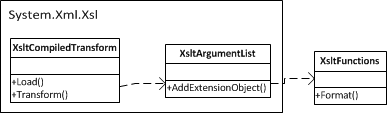
Looking further I fell on this web site: http://msdn.microsoft.com/en-us/library/system.xml.xsl.xsltargumentlist.addextensionobject(v=vs.100).aspx. They suggest to use extension objects containing the C#code instead of writing the code inside the XSLT file. This requires a bit more work on the C#side, but it works everywhere (including in the test project).

image

The (partial) code:

private static readonly XmlUrlResolver _myResolver = new XmlUrlResolver();

private static XslCompiledTransform ReadXslt(string fname)
{
    XslCompiledTransform xsl = new XslCompiledTransform();
    XsltSettings settings = new XsltSettings(false, true);
    xsl.Load(fname, settings, _myResolver);
   
    return xsl;
}

// Additional work in transforming the file (remove C# code from the XSLT file)

private class XsltFunctions
{
    public string Format(string s, int n)
    {
        if (s.Length < n)
        {
            s = new string(‘0’, n – s.Length) + s;
        }
        return s.Substring(0, n);
    }
    // Other functions
}

private static XmlDocument TransformOrganisation(string fname, XmlDocument xml)
{
    // Create an XsltArgumentList, to be passed into the Transform() function
    xsltArgs = new XsltArgumentList();
    XsltFunctions ext = new XsltFunctions();
    xsltArgs.AddExtensionObject(“urn:my-scripts”, ext);

    // Transform in memory
    XslCompiledTransform xct = ReadXslt(fname);
    XmlDocument xformed;
    using (MemoryStream ms = new MemoryStream())
    {
        XmlWriter wtr = XmlWriter.Create(ms);
        xml.WriteContentTo(wtr);
        wtr.Close();

        ms.Seek(0, SeekOrigin.Begin);            // reset stream
        XmlReader rdr = XmlReader.Create(ms);
        using (MemoryStream ms2 = new MemoryStream())
        {
            XmlWriter wtr2 = XmlWriter.Create(ms2);

            xct.Transform(rdr, xsltArgs, wtr2);
            xformed = new XmlDocument();
            ms2.Seek(0, SeekOrigin.Begin);        // reset stream
            xformed.Load(ms2);
        }
    }
    return xformed;
}

Using C# script (or any other not-XSLT extensions) inside XSLT files is now being deprecated, so this is the way to add additional functions to your XSLT files. It is safer because it won’t allow somebody to change your XSLT file and run arbitrary code.

Posted in .Net, Development | Tagged , , | 1 Comment

Advanced logging in IIS 7.5

In the standard installation of IIS 7.5 it is not possible to log the incoming requests, not the outgoing responses. The reason for this is probably that Microsoft wants to keep the attack surface as small as possible. But I needed logging so I asked the web master at TMME (thanks Kim) how to do this.

MS’s iis.net offers free extensions: http://www.iis.net/download/AdvancedLogging
http://learn.iis.net/page.aspx/579/advanced-logging-for-iis—custom-logging/

Using the first link to install the Advanced Logging I got an additional icon in the web app properties page:

image

Possible error:

When opening the “Advanced logging” you’ll see that 1 item is present already. This is defined at site level and inherited to the app level. When you try to modify this item you’ll get:

80070032

This is not the most “speaking” error, but it indicates that you’re not supposed to modify at this level. You can either modify the logging at the site level, or create an additional entry for the purposes of your web app.

BTW, the second link explains how to set up the logging, in case you wondered.

Posted in Computers and Internet, Development, IIS, Logging | Tagged , , | 2 Comments

Using a TreeView in WPF

Using a tree view in Windows Forms is straightforward, but in WPF the control has undergone a lot of modifications. In this blog I’ll describe how to do some tasks that seem to be easy enough, and describe some caveats.

Scrollbar problem

This is the sample window (Don’t mind the colors, they’re just to show the point):

<Window x:Class=”FindInSvclog.MainWindow”
        xmlns=”http://schemas.microsoft.com/winfx/2006/xaml/presentation”
        xmlns:x=”http://schemas.microsoft.com/winfx/2006/xaml”
        Title=”MainWindow” Height=”350″ Width=”568″>
    <StackPanel>
        <Canvas Width=”500″ Height=”228″ Name=”searchCanvas”>
        </Canvas>
        <Grid Grid.Row=”1″>
            <Grid.RowDefinitions>
                <RowDefinition></RowDefinition>
            </Grid.RowDefinitions>
            <Grid.ColumnDefinitions>
                <ColumnDefinition Width=”1*”></ColumnDefinition>
                <ColumnDefinition Width=”1*”></ColumnDefinition>
            </Grid.ColumnDefinitions>
            <TreeView Background=”#FF00FF00″ Name=”FileTree” AlternationCount=”1″ />
            <GridSplitter Width=”5px” ResizeDirection=”Columns” Background=”DarkSlateGray”/>
            <TextBlock Grid.Column=”1″ Background=”#FF0000FF” />
        </Grid>
    </StackPanel>
</Window>

The highlighted TreeView doesn’t have a vertical scrollbar, even though it should.

The problem isn’t related to the TreeView, but to the StackPanel: In a StackPanel every item gets all the space it needs. So the StackPanel doesn’t report its current size back (this is the correct behavior!). Changing the StackPanel into a Grid solved the problem completely.

Posted in .Net, Development | Tagged , , | Leave a comment